Setup guide
Register your phone for OBU Bluetooth
Before Gantry can talk to your OBU, your phone has to be on the OBU's Bluetooth allow-list. You add it once at LTA's ERP Online Services, using your iPhone's Bluetooth address. It takes a couple of minutes.
-
Open ERP Online Services and sign in
Go to erp.lta.gov.sg/internet-esv and log in with Singpass. Under Digital Services for On-Board Unit (OBU), choose Register Smartphone for OBU.
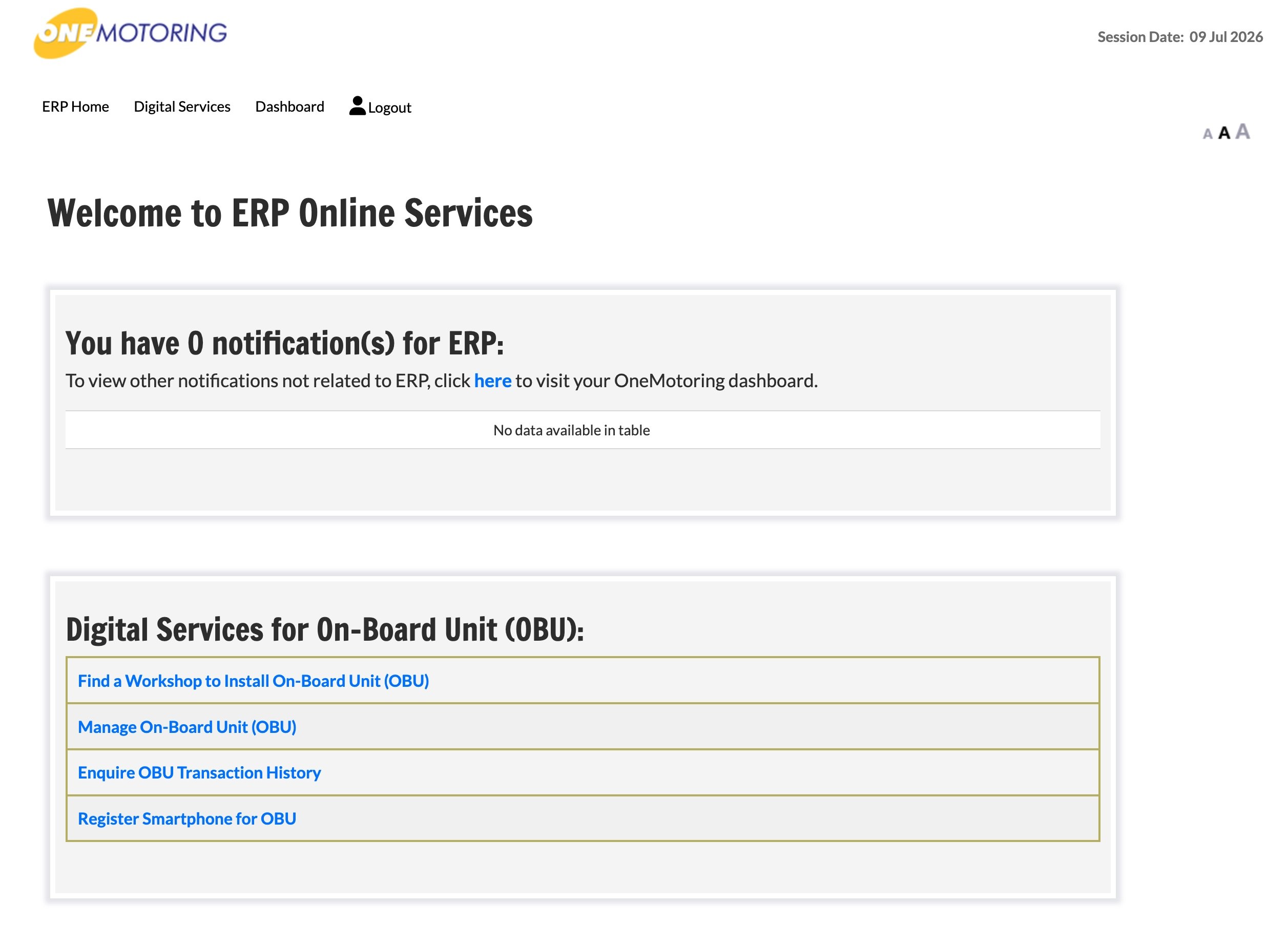
ERP Online Services → Register Smartphone for OBU. -
Find your iPhone's Bluetooth address
On your iPhone, open Settings ▸ General ▸ About and look for the Bluetooth field. It's a six-part address that looks like
AA:BB:CC:DD:EE:FF. Note it down — you'll type it in the next step. -
Add your phone and save
On the Manage Smartphone for On-Board Unit page, enter a Device Name (anything you'll recognise, e.g. your phone model) and your phone's Bluetooth MAC Address, then tap Save. Each OBU allows up to 5 devices. Once the status shows Registered with OBU, you're done.
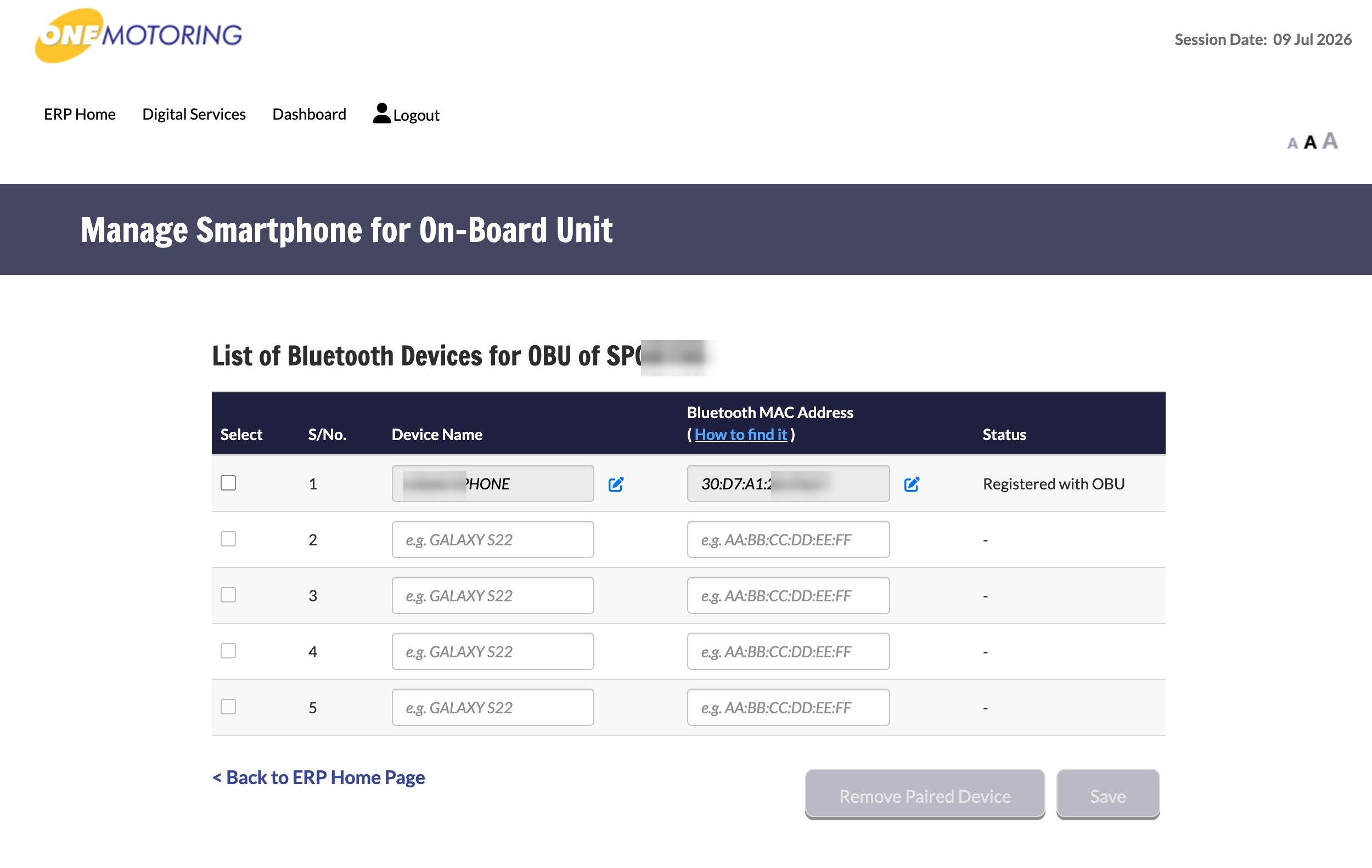
A registered phone showing “Registered with OBU”. (Device name and MAC partly redacted in this example.) -
Back in the Gantry app, pair your OBU
With your phone registered, open the Gantry app and finish Set up ▸ Pair your OBU, then Connect by vehicle number. After that, Gantry reconnects to your OBU automatically each time you drive.