App guide
Everything the Gantry app does
Gantry is the free companion app for the Gantry Display. It links your car’s OBU to the display over Bluetooth and relays your ERP charges, card balance, speed, and road alerts for the display to show — then quietly keeps that connection alive while you drive. This page walks through every screen and every setting.
The four tabs at a glance
A live preview of what the display is showing, plus at-a-glance speed, balance, and connection status.
A running history of every charge, deduction, and road alert, with weekly and monthly spend.
The full settings panel for the display — what it shows, how it looks, and firmware updates.
Your OBU connection and vehicle plate, a connection overview, and help & support.
Home tab
Home is your dashboard. It opens on a dark, in-car theme and its centrepiece is a pixel-faithful preview of the round display — the same layout, colours, and readouts the hardware shows. The preview mirrors exactly the frames the phone is sending, so it works whether or not a display is plugged in, which makes it handy for positioning the display and checking everything looks right before you set off.

The Home tab, with its live preview of the round display.
When your OBU is connected, Home also shows:
- Three glance chips — your current speed, your card balance (green normally, red when it falls below your low-balance threshold), and the link status (Connected, Connecting, Off, or Failed).
- A card-problem banner — if your stored-value card needs attention, a red banner explains it in plain words: insufficient balance, card expired, invalid card, no card inserted, an NFC read error, and so on.
- Recent activity — the three latest events, with a “See all” jump straight to the Activity tab.
- The screen stays awake — while Home is open your iPhone won’t dim or lock, so the preview stays visible on the drive.
When no OBU is connected, Home collapses to a simple “Not connected” state with a Set up your OBU button that opens the setup wizard described next.
Getting connected
There are two separate Bluetooth links to set up once: your phone to your OBU, and your phone to the display. After the first time, both reconnect on their own. New here? The first-time setup guide walks the whole journey end to end; this section is the detail behind it.
Connect to your OBU
A three-step wizard walks you through it:
-
Register your phone at LTA e-Services
Your phone has to be on the OBU’s allow-list before it can connect. You add your iPhone’s Bluetooth address once at LTA’s ERP Online Services — each OBU allows up to five devices. The app links straight to the site and to a step-by-step guide, and you mark this step done once it’s registered. Full walk-through: Register your phone with your OBU.
-
Pair your OBU
Tap Search for OBU and the app scans for about 60 seconds. Any OBU it finds is listed for you to tap and pair. Registering at e-Services and pairing here are two different things — you need both, in this order.
-
Connect by vehicle number
Enter your vehicle plate and tap Connect. From then on the app auto-connects to your OBU each time you launch it, and if the link drops it keeps retrying on its own, backing off gradually so it never drains your battery. A handy tip in the wizard: set up an iPhone Shortcuts automation so Gantry opens by itself when your phone connects to your car.
Pair the display
The display shows a QR code. In the Display tab, choose Pair a display, tap Scan QR code, and point your camera at it — no cables or codes to type. Once paired, the display reconnects automatically every time. More than one phone can be paired — use Add another phone to bring a second driver on board. To move a display to a new owner entirely, use Forget this display → Reset display (or hold the display’s BOOT button for about 8 seconds if the old phone isn’t around). Full walk-through: Unpair the display & pair a new phone.
Display tab — the settings reference
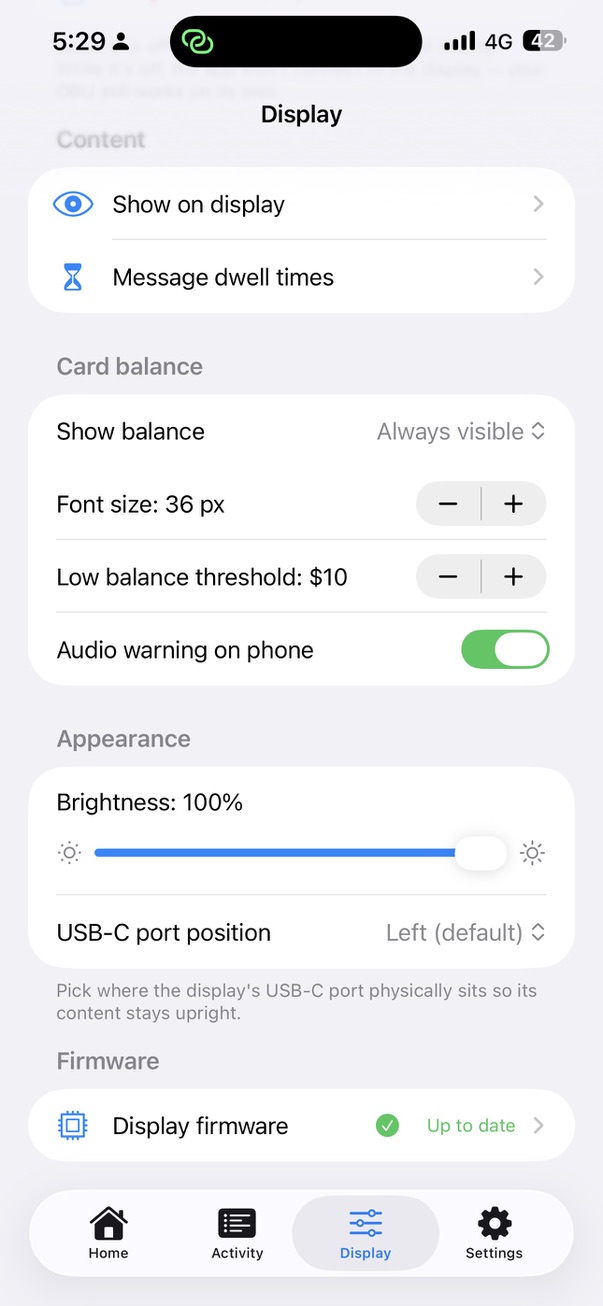
This is where you shape everything the display shows and how it looks. Changes are pushed to a connected display automatically, within a moment of you making them — there’s no “apply” button. The settings are grouped exactly as they appear in the app.

Connection
Enable display connection
Turns the Bluetooth link between your phone and the display on or off. It starts off on a fresh install, so the app never chases a display you have not paired yet. Your OBU still works on its own with this switched off.
Status
A live line telling you whether the display is connected, connecting, or off. It appears once the link is enabled.
Paired display
Shows the name of the display this phone is paired with, marked with a green check once pairing is complete.
Pair a display
Opens the QR scanner to pair a display. Once one is paired it reads “Pair a different display”. See Getting connected below.
Add another phone…
Lets a second driver pair their phone with the same display. The display shows its pairing QR for about 60 seconds while this phone steps aside so the other phone can connect and scan it.
Forget this display
Opens a choice: “Forget on this phone only” removes the pairing from this phone and leaves the display working for any other paired phones, while “Reset display (unpairs all phones)” tells the display to wipe its pairing so its QR code reappears. If the display isn’t connected, only the on-this-phone option is offered — reset it by holding the display’s BOOT button for about 8 seconds.
Show on display

Everything the screen draws, in one place
Three readouts each get an on/off toggle and a font-size stepper: your car speed as the big idle number (28–128 px), a small corner speed kept visible during alerts (28–80 px), and the clock (28–80 px). Below them, the eight road-sign and message categories can each be shown or hidden — anything you switch off is simply never sent to the display.
The eight message categories, each with an example of what it looks like:
Message dwell times
How long each message stays up
Sets how long a traffic or advisory message lingers on the display before it clears on its own — chosen separately for each of the eight categories. Four presets are available: Flash (5 seconds), Short (15 seconds), Normal (30 seconds), and Long (60 seconds).
Card balance
Show balance
Chooses how and when your card balance appears on the display: Off, Always visible, After each deduction, or when the OBU connects. In the pop-up modes the balance appears briefly then clears; Always visible keeps it pinned on screen.
Font size — balance
Sets the balance readout size, in steps from 28 px up to 48 px. It is capped at 48 px because the larger number faces on the display can only draw digits — not the “$” and label the balance needs.
Show for
In the pop-up modes, how long the balance stays up before it clears — anywhere from 3 to 60 seconds.
Low balance threshold
When your balance drops below this, the display forces the balance into view and the figure turns red on the Home tab. Adjustable from $2 to $50.
Audio warning on phone
Speaks a short spoken warning through your phone when the balance falls below the threshold, so you hear it without looking.
Appearance
Brightness
Sets the display’s brightness, from 5% to 100%. It will not go below 5%, so the screen can never go fully dark with no way to bring it back.
USB-C port position
Tells the display where its USB-C cable enters — Left, Top, Right, or Bottom — so it can rotate its layout to stay upright however you have mounted it.
There’s no theme or colour-scheme setting — the display’s colours are fixed, and the only look-and-feel controls are brightness and orientation.
Firmware updates
The display’s own software updates come straight from your phone — no computer and no cable. The app shows the installed version alongside the latest available, its size, and release date, then walks through three steps:
-
Check for updates
The app checks online for a newer display version and shows what’s available. It checks automatically whenever you open this screen.
-
Download
The new firmware downloads to your phone and is verified as intact before it’s ready to install. The download is kept, so you don’t have to fetch it again.
-
Flash to display
The verified firmware streams to the display over Bluetooth with a live progress percentage (and a Cancel option), then the display verifies it, reboots, and comes back on the new version.
Activity tab
Activity is your paper trail. Two tiles at the top show your this-week and this-month spend, and a filter — All / Charges / Alerts / Traffic — narrows the feed below.
- A day-grouped history, newest first, under “Today”, “Yesterday”, and dated headers in Singapore time.
- Every charge and deduction — ERP road pricing, EPS parking, distance-based charging, checkpoint tolls, off-peak car and regional-entry permits — each with its description and amount.
- Traffic and road-sign alerts as they happened on the drive.
- It survives app restarts — your history is saved on the phone and is still there next time you open the app.
- Clear messages tidies the alert feed but keeps your spend record intact.
Settings tab
- OBU connection & plate — your live connection status and the vehicle plate you’re paired to, plus a shortcut back into the setup wizard.
- Connection overview — a small diagram of the whole chain, OBU ↔ Gantry app ↔ Display, with each link coloured by its live state (green connected, yellow connecting, grey off, red failed) so you can see at a glance where a problem is.
- Help & support — an Email logs button that opens an email pre-addressed to support with a diagnostic log attached. See the Support page for what the log contains and how to send it.
- App version — the installed app version and build number.
Live Activities & widgets
Gantry reaches beyond the app itself, onto your Lock Screen and Dynamic Island.
- Driving-session Live Activity — while you’re connected to the OBU, a Lock Screen card and the Dynamic Island show your card balance, your last charge, and your current speed. It starts automatically when the OBU connects and ends when you disconnect.
- Lock Screen balance widgets — a circular and a rectangular widget that keep your card balance a glance away. The rectangular one also shows how long ago it was “Updated”.
Works from your pocket
On the road, the display is what you watch — the app is meant to stay in your pocket. It’s built to run quietly in the background:
- Background Bluetooth keeps the display connected without the app open.
- Automatic OBU reconnection retries a dropped link on its own, backing off gently to save battery, and reconnects the instant your phone stirs.
- A notification if the OBU drops while you’re driving, so you know to check — shown only when you’re actually in the car with the display connected.
- A spoken low-balance warning through your phone when your card runs low, so you can top up in time.